Setting Up Intervals.icu for the First Time

By Toby Pattullo
Australian Deaflympic marathon and ultra runner, and the solo developer behind IcuSync.
Intervals.icu is free to use and worth setting up properly before you connect IcuSync. Ten minutes of configuration now means Claude will have accurate data to work from, and every workout it builds will land on your watch automatically.
This guide covers the essential steps for new users, whether you are coming from Strava, TrainingPeaks, Garmin Connect, or starting completely fresh.
Before you start, make sure you have:
A free Intervals.icu account. Create one at Intervals.icu before continuing.
An active IcuSync subscription. Sign up at icusync.icu if you have not already.
A Claude account, free or paid. Any plan supports the MCP URL method.
Step 1 - Create your Intervals.icu account
Go to Intervals.icu and create a free account. No payment required. Everything IcuSync needs is on the free tier.
Once logged in you will see your Intervals.icu dashboard with your training calendar.
You will know this worked when you can see your calendar and account name in the top right corner of Intervals.icu.
Step 2 - Connect your device and enable planned workout sync
This is the most important configuration step. You need Intervals.icu to both receive your completed activities from your device and send planned workouts back to it.
Important note for Strava users: Activities synced through Strava have limited data available, detailed metrics like TSS, power zones, and interval breakdowns are not accessible via the API. Claude can see your activity list but won't be able to analyse individual sessions in detail. The fix is to connect your device directly to Intervals.icu instead. Garmin, Wahoo, Coros, Suunto, and Polar all support direct sync natively once set up, Claude will have full access to all your training data.
Go to your Intervals.icu Settings page.
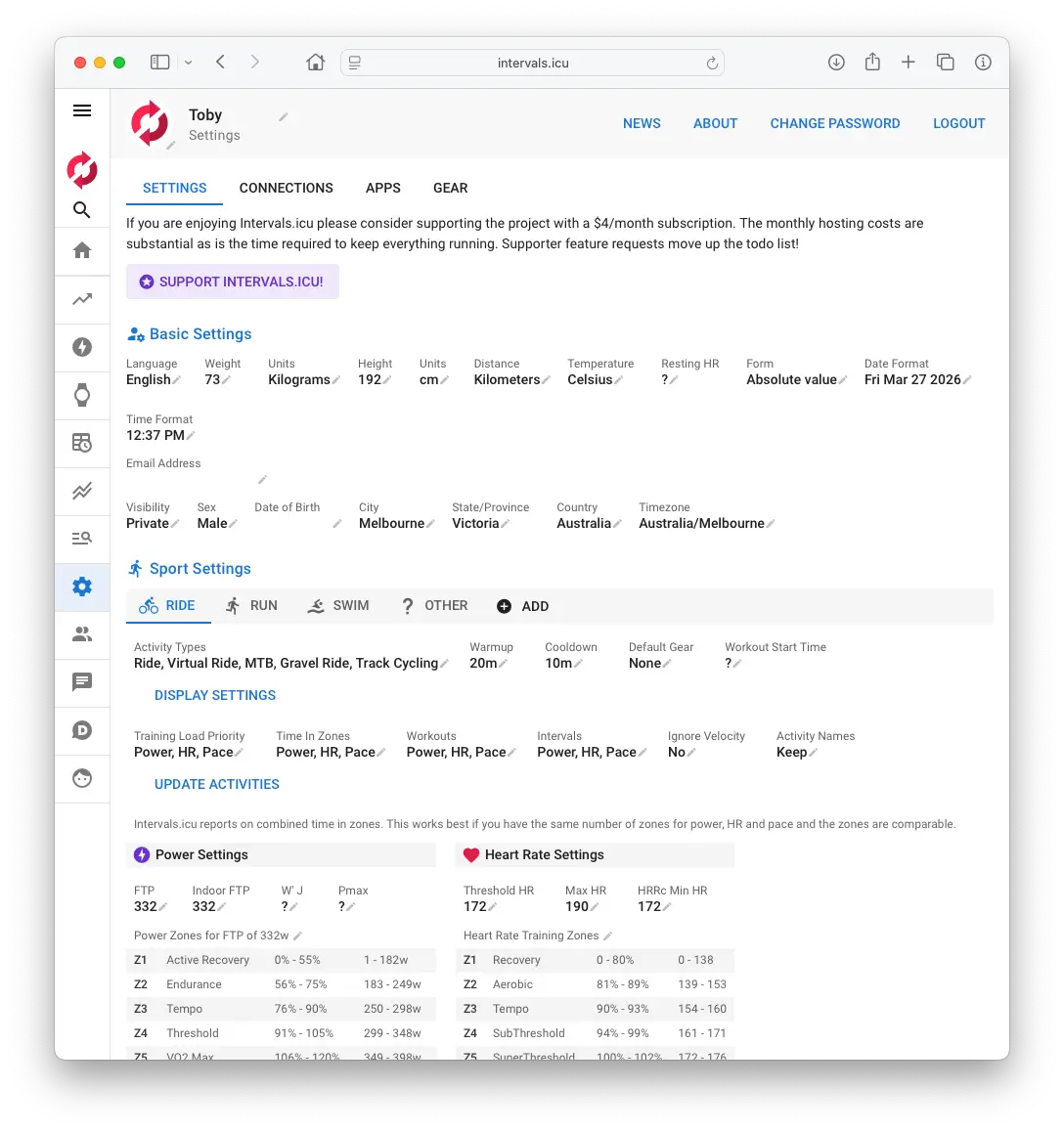
Click Connections and find your device. Garmin, Coros, Wahoo, Polar, or Suunto.
Authorise the connection by following the prompts for your device.
Once connected, find the Upload planned workouts checkbox and make sure it is ticked.
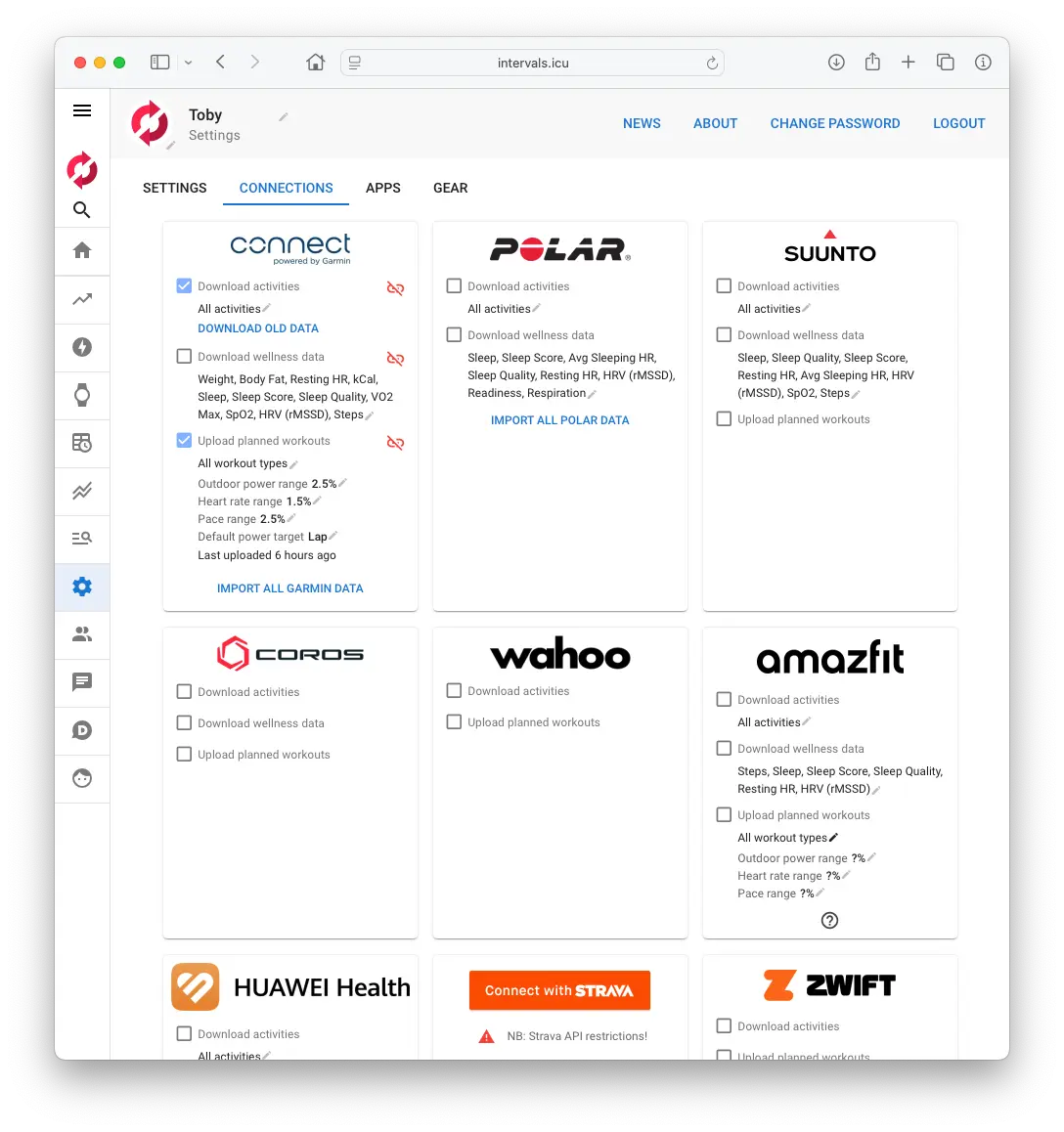
You will know this worked when your device appears as connected and the Upload planned workouts checkbox is ticked. Without this step, workouts Claude builds will appear on your Intervals.icu calendar but will not reach your watch.
Step 3 - Set your sport settings
Claude uses your threshold values to calculate your training zones and set accurate intensity targets in every workout it builds. Without these set, workout targets will be missing or incorrect.
Go to Settings then Sport Settings in Intervals.icu.
For running, enter your threshold pace. This is your best sustainable effort for roughly 50 to 60 minutes. A recent 5km or 10km race time gives a good estimate.
For running with Stryd, enter your Critical Power in watts. Find your current CP in the Stryd app.
For cycling, enter your FTP in watts.
Enter your maximum heart rate and Intervals.icu will calculate your heart rate zones automatically.
You will know this worked when your zones appear correctly populated under each sport in your sport settings.
Step 4 - Connect your Intervals.icu account
Find the Intervals.icu connection section in your IcuSync dashboard and click Connect with Intervals.icu. You will be taken to Intervals.icu to review and approve the access request. Once approved, you are returned to your dashboard and your account will show as connected.
You will know this worked when IcuSync confirms your Intervals.icu account is connected in your dashboard.
Step 5 - Connect IcuSync to Claude
This step depends on your Claude plan.
The MCP URL method works on any Claude plan and is recommended. It works on Claude web, mobile, and desktop with no installer needed.
In your IcuSync dashboard, generate your token and build your MCP URL.
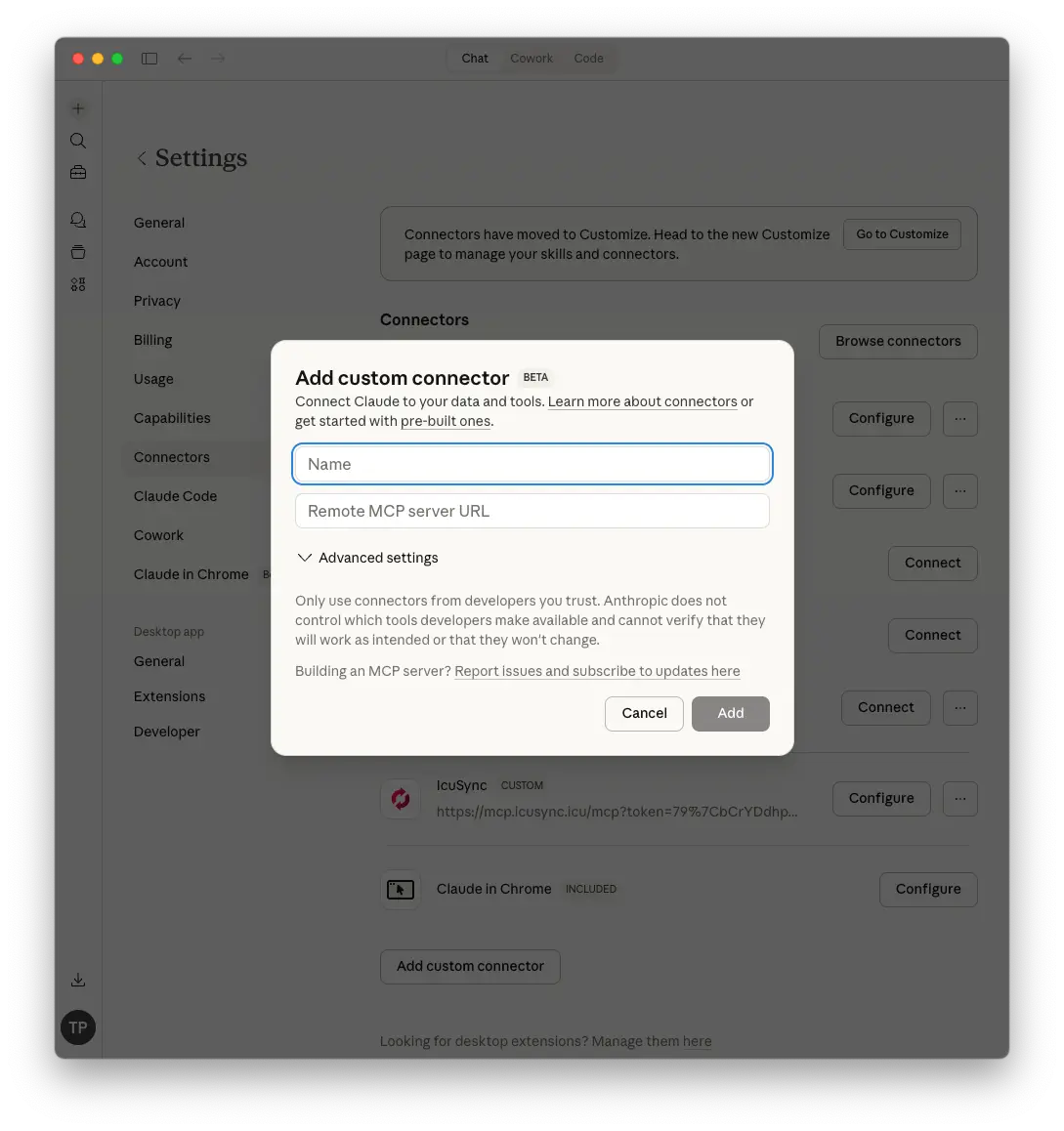
Go to Claude Web or Claude Desktop and open Customize then Connectors.
Click the "+" button and select "Add Custom Connector" and set the connector name to IcuSync.
Paste your MCP URL in this format: https://mcp.icusync.icu/mcp?token=YOUR_API_TOKEN
Once added on web or desktop it will automatically appear in your Claude mobile app too.
Alternatively, use the Desktop Extension on Claude Desktop. Download the icusync.mcpb file from your IcuSync dashboard, double-click to install, and enter your token when prompted.
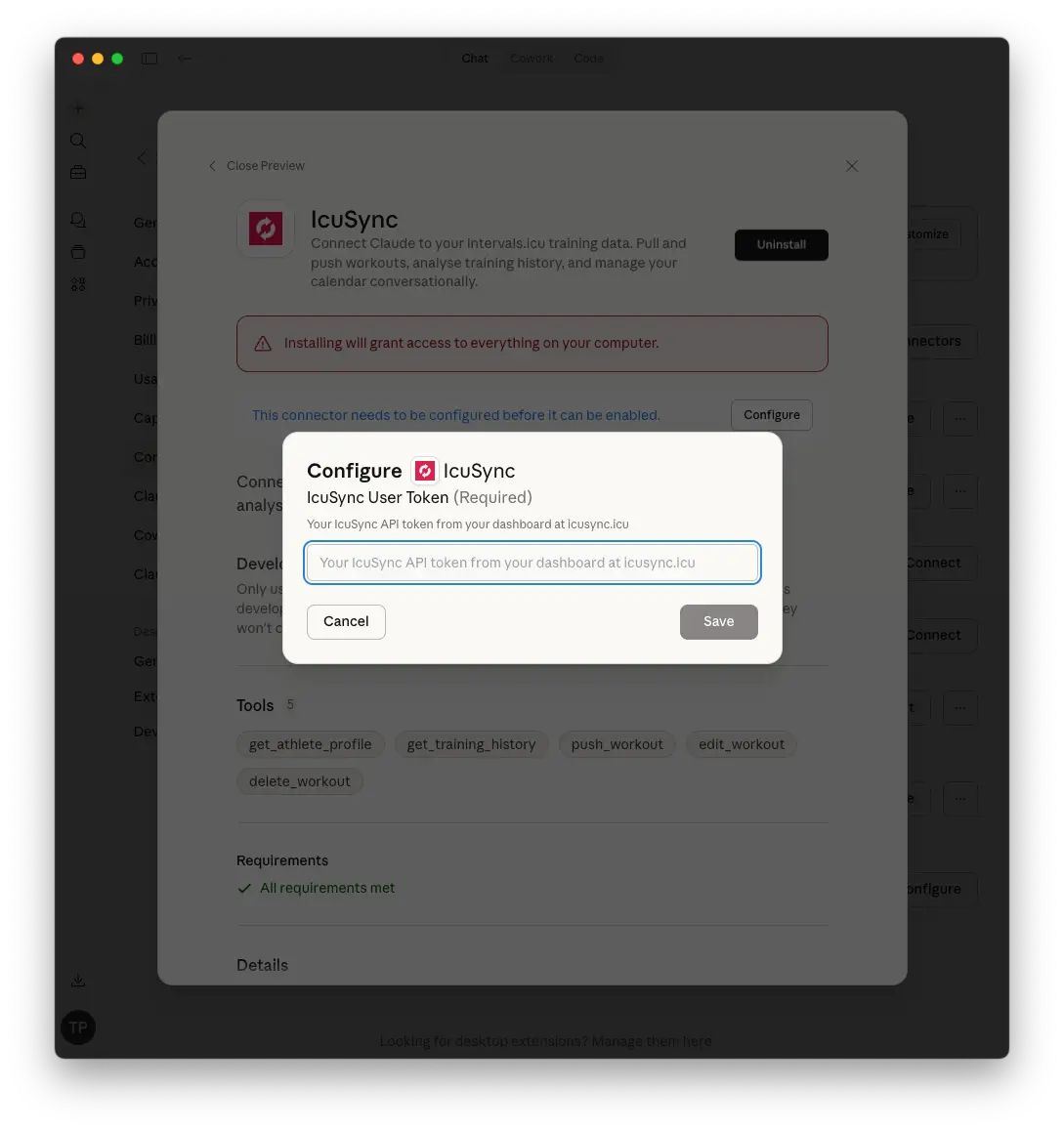
You will know this worked when IcuSync appears as a connected tool in Claude. Always start a fresh conversation after connecting. New tool connections require a new session to activate.
Step 6 - Your first conversation
Open Claude and start a new conversation.
Tip: For the best experience, create a Claude Project for your training. Add context to the Project instructions about your goals, background, and preferences so Claude carries that into every conversation automatically.
Try this prompt to confirm everything is working:
Look at my last four weeks of training and give me a summary of my fitness and fatigue trends.
Claude will read your Intervals.icu data in real time and respond with your actual training numbers.
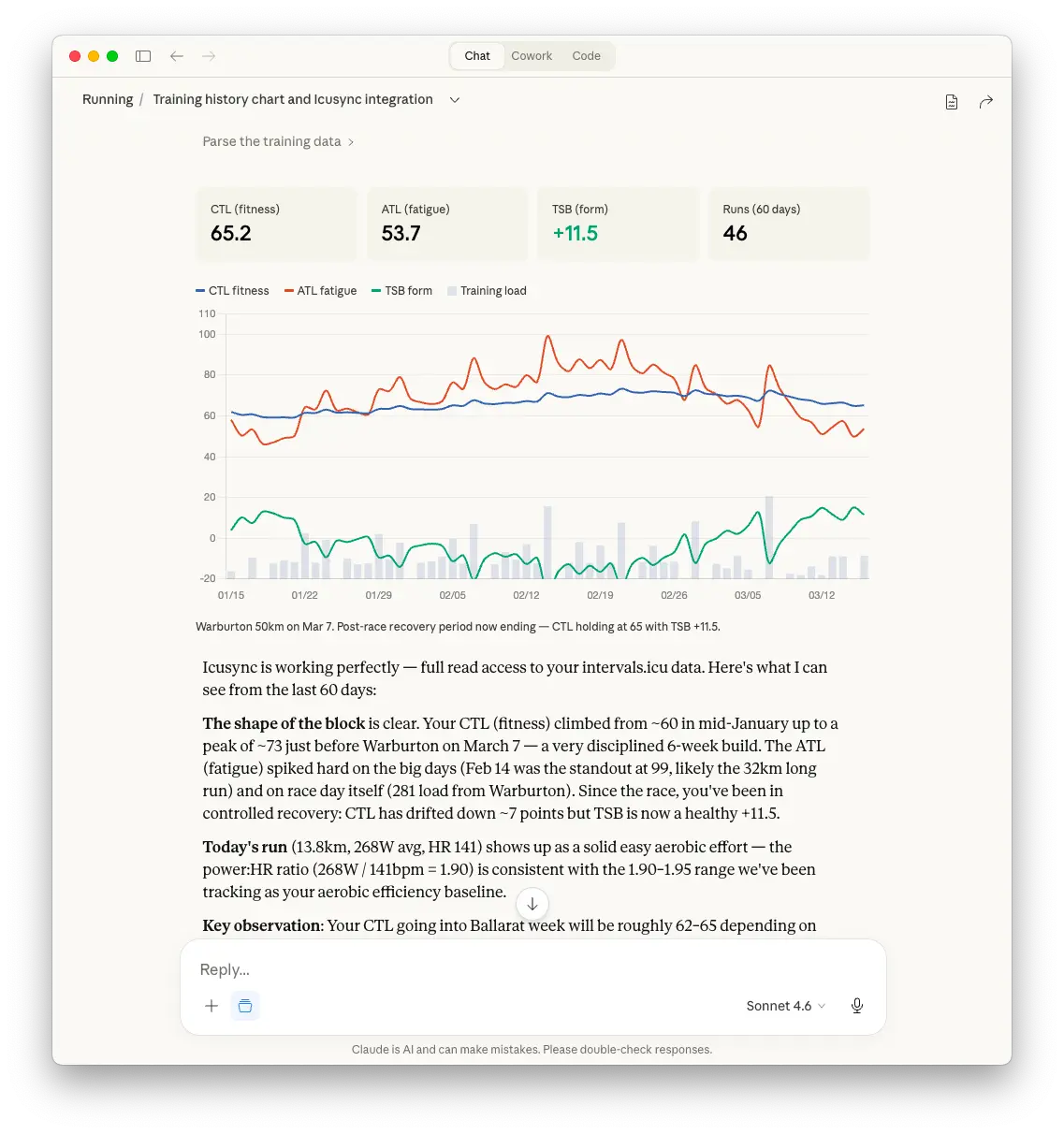
You will know this worked when Claude references your actual training data in its response rather than giving a generic answer.
Step 7 - Check your first workout
When you ask Claude to build and push a workout, always check your Intervals.icu calendar after it confirms the workout has been pushed.
Confirm the session looks right for where you are in your training. Check the duration, intensity, and structure all make sense.
Check your device has picked up the workout after your next sync.
If anything looks wrong tell Claude and it will adjust and update the workout on your calendar.
Claude builds, you approve. You are always in control of what goes on your watch.
The full flow once everything is set up
It helps to understand the complete picture.
You ask Claude to build a workout. Claude writes it and pushes it to your Intervals.icu calendar via IcuSync. intervals.icu sends the workout to Garmin Connect, Coros, Wahoo, Polar, Suunto, or your other connected device. Your device picks it up on the next sync. You head out and run the session with full structured guidance on your wrist.
Nothing needs to be copied, downloaded, or manually transferred. That is the whole point.
If something looks wrong later
If Claude's workout suggestions feel consistently too easy, too hard, or the zone targets look off, the most common cause is a threshold value that is outdated or set incorrectly.
Go back to Settings then Sport Settings in Intervals.icu and update your threshold pace or power. Intervals.icu recalculates your zones automatically and Claude will use the updated values in your next conversation.
Threshold values should be reviewed every couple of months or after any significant fitness change. A strong race result, a period of illness, or the start of a new training block are all good prompts to reassess.
Common issues
Claude says it cannot access my Intervals.icu data
Try disconnecting and reconnecting Intervals.icu from your IcuSync dashboard. Click the disconnect button, then click Connect with Intervals.icu and complete the authorisation again.
Workouts are on my Intervals.icu calendar but not on my watch
Check the Upload planned workouts checkbox is ticked in intervals.icu Settings then Connections for your device.
Make sure your device has synced since the workout was pushed. Open the companion app and trigger a manual sync if needed.
IcuSync is not showing up in Claude
Make sure you started a fresh conversation after connecting. New tool connections require a new session to activate.
If using the MCP URL confirm it was pasted correctly with no extra spaces or characters.
You are ready
Once Claude references your actual training data in a response, everything is working correctly.
Head to the Prompts and Charts page for ready-to-use prompts to get the most out of your setup.
Known limitations and common questions
IcuSync works well for most athletes and setups, but there are some known limitations worth being aware of before you start.
Visit the support page for a full list of frequently asked questions, known issues, and troubleshooting guidance.