AI Coaching File: Templates for Runners, Cyclists and Triathletes

By Toby Pattullo
Australian Deaflympic marathon and ultra runner, and the solo developer behind IcuSync.
Your AI can read your training data, but it doesn't know how you like to train. A coaching file fixes that. It's a short set of notes in your Intervals.icu library that tells your AI your goals, your planning rules and how you want feedback, so you never have to explain them again.
This guide shows you how to set one up in a couple of minutes, how to write rules your AI actually follows, and gives you four templates to copy.
IcuSync works with Claude, ChatGPT, Grok and other AI assistants that support MCP. We recommend Claude for the best coaching experience.
What a coaching file is
A coaching file is a folder named Coaching file in your Intervals.icu workout library. Each note in it covers one topic, like your goals or your planning rules. Before your AI plans, reviews or advises, it reads the file and follows it as your preferences.
It holds rules, not numbers. Your zones, thresholds, FTP and workouts already live in Intervals.icu, and your AI reads them from there. Your coaching file says how to use them.
You stay in charge. What you say in the chat always comes first, and your AI still asks before deleting workouts, changing settings or adding a whole plan, whatever the file says.
Set it up in two minutes
Option 1: ask your AI
Just say what you want kept, in your own words:
- "Start my coaching file: long run on Sunday, never two hard days in a row."
- "Add to my coaching file that I want feedback short."
- "From now on my rest day is Friday. Update my coaching file."
Your AI shows you the exact text before saving anything, and saves only when you say yes.
Option 2: write it in Intervals.icu
- On the calendar, select the book icon in the top bar to open your Library.
- Choose New, then Folder, and name it Coaching file.
- On the folder's menu, choose Add Workout, set Sport to Note, give it a name, write your rules in Description, and choose Ok.
- Ask your AI: "What's in my coaching file?"
Use one note per topic. To keep them in order, start each name with a number, like "1 My goals" and "2 Planning rules".
How to write rules your AI follows
A few habits make a big difference:
- Be specific. "Easy runs stay below 75% of threshold heart rate" works better than "keep easy runs easy".
- Say what to do, not just what to avoid. "If I miss a key session, move it once, otherwise drop it" gives your AI a clear action.
- Keep it short. Five or six lines per note is plenty. You can always add more.
- Include back-off signals. Tell your AI what to do when sleep, HRV, soreness or missed targets look off.
- Say how you want to hear it. Short or detailed, numbers or plain words, what to tell you first.
Four templates to copy
Copy the one closest to you, then change anything that doesn't fit.
1. Marathon runner in a build
1 My goals
- Goal race: spring marathon, target pace 4:15/km.
- This block is about marathon pace endurance, not speed.
2 Planning rules
- Mostly easy running, with two quality sessions a week: one threshold or interval session, and one long run with marathon pace.
- Increase weekly volume by no more than 10%, with an easier week every fourth week.
- Long run on Sunday, rest day on Friday.
- Never put a hard session the day after the long run.
3 Back-off signals
- If sleep is poor or HRV is below my normal for two days, swap the next hard session for an easy run and tell me why.
4 Feedback
- Be direct and keep it short: how it went, then one thing to change.
2. Cyclist in base phase
1 My goals
- Build aerobic base over winter for a spring gran fondo.
2 Planning rules
- Hard days hard, easy days easy. Easy rides stay at or below 75% of FTP.
- Two interval sessions a week (threshold or VO2), never on back-to-back days.
- If load needs trimming, cut extra endurance minutes first and keep the key intervals.
- Indoor sessions on Zwift on weekdays, long ride outdoors on Saturday.
3 Feedback
- Show power and heart rate for the main set, then a one-line summary.
- Suggest changes first and never edit my calendar without asking.
3. Triathlete
1 My goals
- Goal race: 70.3 in March. The bike is my weakest leg.
2 Planning rules
- Three swims, three rides and three runs a week, with one rest day on Monday.
- One key session per sport per week. The rest stay easy.
- Long ride Saturday, long run Sunday. Brick runs only after the long ride.
- Never schedule hard run and hard bike sessions on the same day.
- Swim sessions by pace per 100m, not heart rate.
3 Back-off signals
- If my legs are sore two days in a row, drop the next run intensity first.
4 Feedback
- Review the week by sport, then overall load.
4. Masters athlete
1 My goals
- Stay consistent and injury-free while keeping some speed.
2 Planning rules
- At least one full rest day and one easy day after every hard session.
- Two strength sessions a week, on easy days, never the day before a key session.
- Keep one short session with fast strides or short hills each week.
- Prefer three-week build blocks followed by an easier week.
3 Back-off signals
- If recovery looks off for two days, or I report a niggle, reduce intensity first and volume second, and say so.
4 What never to do
- Don't increase long run or long ride length by more than 15 minutes in a week.
Let your AI interview you
Not sure what to write? Ask your AI to build it with you:
"Help me set up my coaching file. Ask me questions one at a time about my goals, my weekly schedule, my hard and easy days, how I recover and how I like feedback. Then show me the notes before saving them."
Your AI asks the questions, drafts the notes in your words and shows them to you first. Change anything you like before saying yes.
Check that it works
Try these after setting it up:
- "What's in my coaching file?"
- "Plan next week using my coaching file."
- "Look at my last four weeks. Did my training follow my coaching file? Show me where it didn't."
The last one is a great monthly habit. It shows whether your easy days are really easy and whether you're sticking to your own rules.
Keep it up to date
Your coaching file should change as your season does. Update it when you:
- Pick a new goal race or start a new block
- Come back from injury or illness
- Learn something about yourself, like "I need two easy days after a long run"
Just tell your AI "from now on..." and ask it to update your coaching file.
Coaching file or AI project? Use both
Claude, ChatGPT and Grok all let you create projects with their own instructions and files. A project and a coaching file work well together:
- Your coaching file holds your training rules. It lives in Intervals.icu, so every AI you connect follows it, and your coach can see and update it too. Switch from ChatGPT to Claude and your rules come with you.
- A project holds everything else your AI should know: longer notes, past race reports, documents and the history of your chats about training. It stays inside that one AI app.
A simple way to split it: rules go in the coaching file, background goes in the project. Read more in How Claude Gets Better the More You Train Together.
For coaches
Coaches using IcuSync can read and update each athlete's coaching file. Write the athlete's rules once (key sessions, recovery needs, injury history to respect) and your AI follows them every time you plan or review for that athlete.
Good to know
- Up to 10 notes are read, each up to 6,000 characters.
- Only your own Coaching file folder is used.
- The same coaching file works with any AI you connect, so you can switch between Claude and ChatGPT without starting over.
Want a full coaching system in Notion?
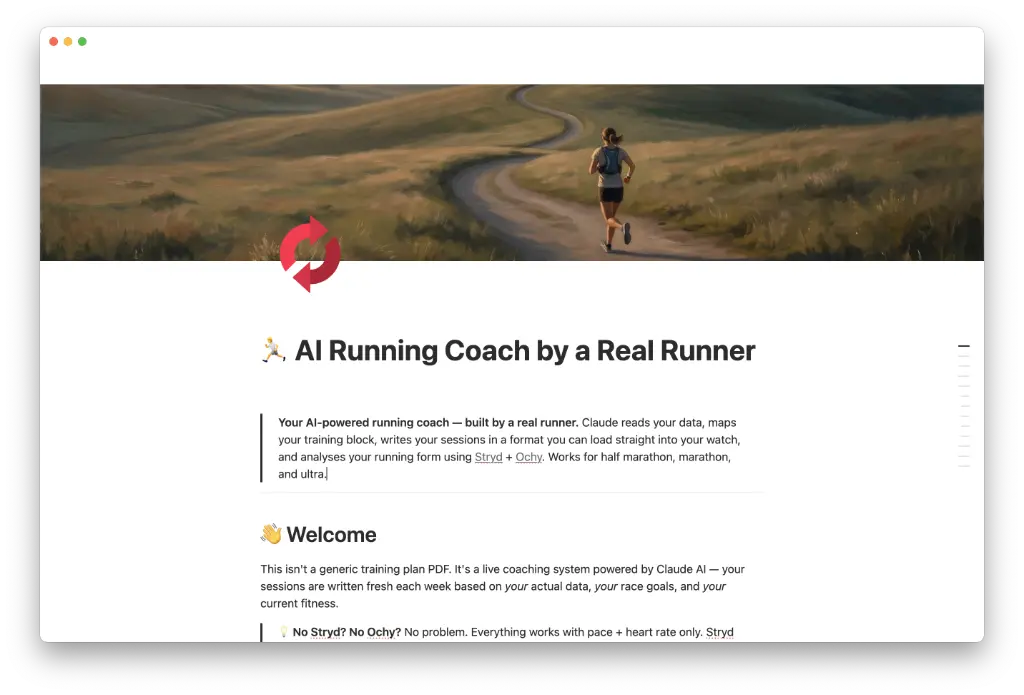
Our free Notion template, AI Running Coach by a Real Runner, goes further than a coaching file. It turns a Claude Project into a full coaching system for runners, with five pages:
- Start Here: your athlete profile, set up by chatting with Claude
- Weekly Training Calendar: map your block, log sessions and get next week's plan in watch-ready format
- Race Toolkit: race day plans, fueling and cutoff charts
- Form & Strength: running form and gym work, using Stryd and Ochy if you have them
- Coach's Playbook: training methods like Canova, Daniels and 80/20, explained
It's built for runners, but you can ask your AI to adapt it for cycling, swimming or triathlon.
Use it alongside your coaching file: your rules stay in Intervals.icu for any AI, and the template holds your profile, plans and race prep in Notion. It needs Claude and Notion, and both work on their free plans. Get the free Notion template (opens in a new tab).
FAQ
What is an AI coaching file? A short set of notes with your training goals, rules and feedback preferences that your AI reads before giving advice. With IcuSync it lives in a "Coaching file" folder in your Intervals.icu library.
Where is my coaching file stored? In your Intervals.icu workout library, in a folder named Coaching file. Open the calendar and select the book icon to see it.
Can my AI change my coaching file? Yes, when you ask. It shows you the exact text first and saves only after you say yes.
What should I put in a coaching file? Your goals, your weekly structure, hard and easy day rules, back-off signals and how you like feedback. Leave out zones and thresholds, since your AI reads those from Intervals.icu.
Does the coaching file work with ChatGPT? Yes. It works with Claude, ChatGPT, Grok and other assistants that support MCP connectors.
Is a coaching file the same as project instructions in Claude or ChatGPT? No. A coaching file lives in Intervals.icu and works with any AI you connect. Project instructions only work inside that one app. Many athletes use both: training rules in the coaching file, background and notes in the project.