Intervals.icu Custom Activity Fields: Link Your Fuelling to Your Performance
By Toby Pattullo
Australian Deaflympic marathon and ultra runner, and the solo developer behind IcuSync.
Intervals.icu records a lot about every session: your pace, power and heart rate, how much your heart rate drifted, the weather, and how fresh or tired you were that day. But it only knows what your devices tell it.
Some of the things that change your performance most never reach a device. What you ate during the session. How your stomach felt. How much you drank.
Custom activity fields let you add your own data to every activity. Once it's there, it sits right next to your pace, power, heart rate, weather and fatigue, and your AI assistant can compare them all through IcuSync.
This guide uses fuelling as the example. Most athletes already know which gels they like. What's harder to see is how your fuelling shows up in your performance: did a long run hold its pace better at 70 grams of carbs an hour than at 40? Did your heart rate drift less? Was that bad day really the fuelling, or was it the heat?
You'll see what custom activity fields are, how to set up a fuelling system in a few minutes, how your AI assistant can fill it in for you, and what it can find once the data is there. It finishes with more ideas for fields that other athletes use.
What is a custom activity field?
A custom activity field holds one value per activity. That's the difference from a custom stream, which is a second-by-second line of data like power or heart rate.
A field can get its value in three ways:
| How it's filled | Example |
|---|---|
| You enter it (a number, text, or a choice from a list) | Gut comfort 4 out of 5, "2 gels and a banana" |
| Read from your activity file | A value your watch records but Intervals.icu doesn't show |
| Calculated with a short script | Carbs per hour, from your carbs and moving time |
Once a number field has values, you can plot it on the Fitness and Compare pages and see how it changes over weeks and months.
Check first: someone may have made it already
Intervals.icu has a shared library of fields made by other athletes. Search it before you build your own.
Open any activity and click Customize (next to Notes), then Activity Fields. Click Field with the magnifying glass at the bottom, and try words like carb, fuel, lactate or sweat.
For example, searching carb finds more than a dozen shared fields, including a few that calculate carbs per hour. Click a field to add it to your account. You can open it afterwards to see exactly how it works.
CHO is short for carbohydrate. You'll see it a lot in sports science and in shared field names.
The fuelling system
Here is the set of fields I use for my own long runs. Intervals.icu already has a built-in field for the carbs you eat, shown as CHO In on the activity (total grams), so the system builds on it instead of repeating it.
| Field | Code | Type | Aggregate | Example |
|---|---|---|---|---|
| CHO In (carbs eaten) | built in | Number (g) | 195 | |
| Carbs Per Hour | CarbsPerHour | Script | Average | 70 g/h |
| Fuel Interval | FuelInterval | Number (min) | Average | 20 |
| Fuel Log | FuelLog | Text | Gel every 20 min, PF 30 and Maurten alternating | |
| Fluid | Fluid | Number (ml) | Sum | 900 |
| Gut Comfort | GutComfort | Number, 1 to 5 | Average | 5 |
All five are public, so you can search for them by name and add them in one click instead of building them yourself.
Why both a log and numbers? The numbers can be charted and compared. The text log keeps the detail that numbers lose, like which gel you used, when you stopped eating, or that you had a date at halfway.
How to create a field
We'll build Gut Comfort as the example. The others follow the same steps.
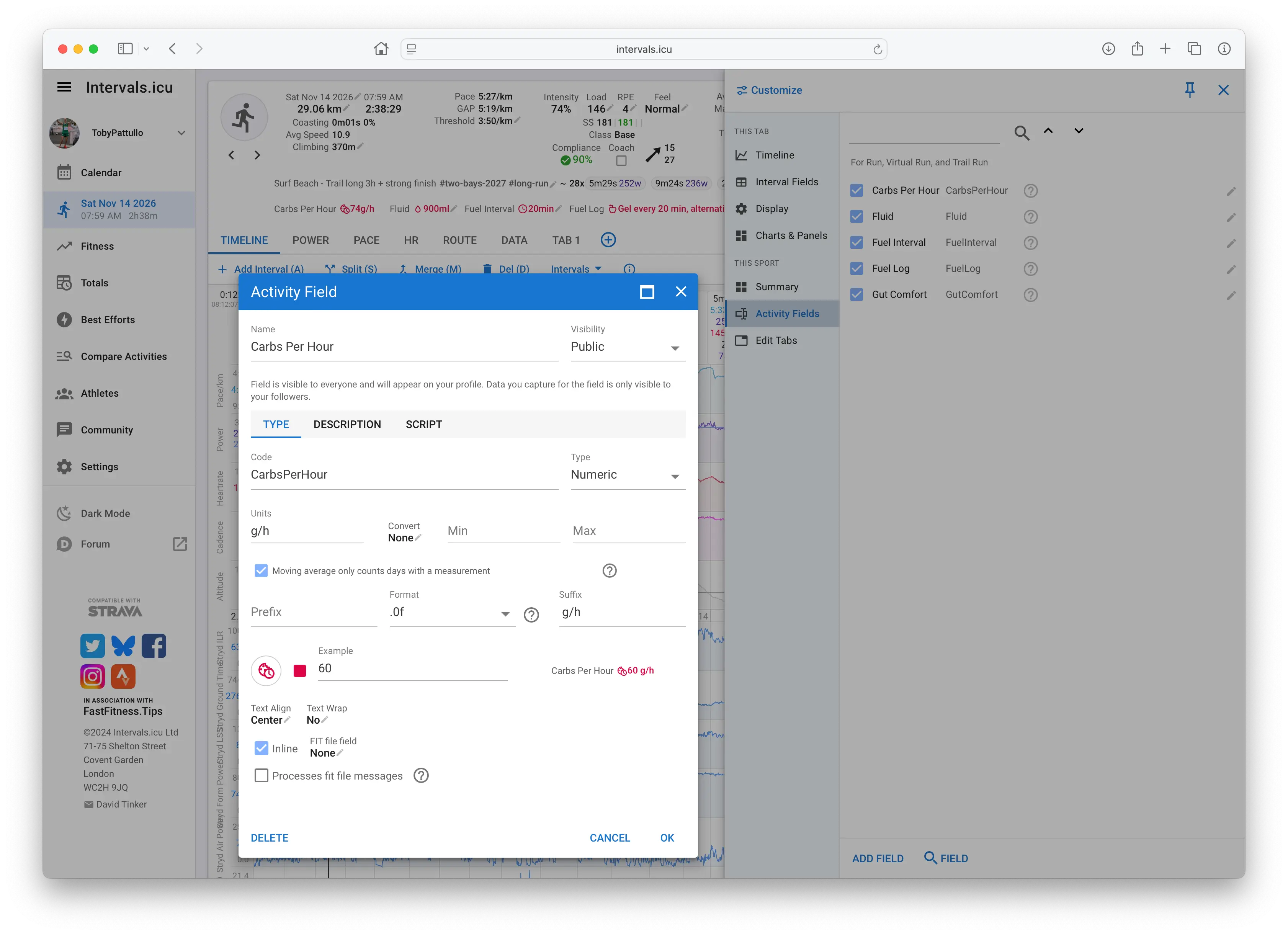
Step 1: Open the field editor
Open any activity and click Customize (next to Notes), then Activity Fields. Click Add Field at the bottom.
Step 2: Fill in the Type tab
- Name: Gut Comfort. This is what you see on the activity.
- Visibility: Private just for you, or Public so other athletes can find it in the search.
- Code: GutComfort. This is the field's ID, used by scripts and by IcuSync. Pick it carefully, because it's hard to change once you have data.
- Type: Numeric
- Min 1, Max 5
- Format:
.0ffor whole numbers, so a 4 shows as "4" and not "4.0" - Example: 4
OK button greyed out? Check the Example box. It starts at 42, which is outside a 1 to 5 range, and the dialog won't save until the example fits.
Step 3: Fill in the Description tab
- Description: explain the scale, for example 1 = bad (cramps, nausea, had to stop), 3 = some discomfort, 5 = perfect. A clear description helps you, other athletes and your AI assistant read the numbers the same way.
- Website for more info: a link to a guide like this one, if you share the field.
- Aggregate: how two activities on the same day are combined on the Fitness chart. Use Average for scores like gut comfort, and Sum for totals like fluid, where two sessions really do add up.
Pick a colour and icon if you like, then click OK.
Step 4: Tick it to show it
A new field doesn't appear on your activities until you tick it in the Activity Fields list. The list is per sport, so the ticks you set on a run apply to Run, Virtual Run and Trail Run.
Ride and run? Open a ride and tick the same fields there too. Otherwise your fuelling fields only show on one sport.
Carbs per hour, the script example
Total carbs don't tell you much on their own. 100 grams over one hour is a lot, and over four hours it's very little. Carbs per hour is the number athletes actually compare, and Intervals.icu can work it out for you.
Create a field called Carbs Per Hour (code CarbsPerHour, Numeric, units g/h, format .0f), then paste this into the Script tab:
{
  let carbs = activity.carbs_ingested
  let hours = activity.moving_time / 3600
  carbs > 0 && hours > 0 ? Math.round(carbs / hours) : null
}
It divides your carbs by your moving time, so stops at a café or a traffic light don't lower the number. Activities with no carbs logged stay empty instead of showing 0, so your averages and charts aren't dragged down.
Scripts run when Intervals.icu analyses the activity. If a value doesn't appear, open the activity and choose Actions, then Analyse.
Let your AI assistant do the logging
This is the part that makes the system last. Typing five fields into Intervals.icu after every long run gets old fast, and most people stop after a week.
With IcuSync connected, you tell your AI assistant what happened, in your own words:
I had a gel every 20 minutes on today's long run, alternating Precision PF 30 and Maurten Gel 100, 7 in total, plus 900 ml of electrolyte. Stomach was perfect.
Claude works out the total carbs, then writes every field in one go:
| Field | Value |
|---|---|
| CHO In | 195 g |
| Fuel Interval | 20 |
| Fuel Log | Gel every 20 min, alternating Precision PF 30 (30 g) and Maurten Gel 100 (25 g): 4 x PF 30 + 3 x Maurten. 900 ml electrolyte. |
| Fluid | 900 |
| Gut Comfort | 5 |
Intervals.icu then calculates Carbs Per Hour by itself.
Garmin tip: newer Garmin watches can log carbs during an activity. Those carbs arrive in the same built-in CHO In field, so Carbs Per Hour works for them too. Your AI assistant only needs to fill in the rest.
What it found: three long runs
Here are three of my own trail long runs, two weeks apart, logged exactly as above.
| 7 Nov | 14 Nov | 21 Nov | |
|---|---|---|---|
| Fuelling | Gel every 20 min | Gel every 20 min | 1 gel, then a bar and a date |
| Carbs Per Hour | 70 g/h | 74 g/h | 24 g/h |
| Gut Comfort | 5 | 5 | 3 |
| Average power | 241 W | 251 W | 236 W |
| Average heart rate | 138 bpm | 146 bpm | 151 bpm |
| Efficiency (power per heartbeat) | 1.80 | 1.74 | 1.61 |
| Heart rate drift (decoupling) | -5% | 6% | 11% |
| Temperature | 10 °C | 14 °C | 18 °C |
| RPE | 4 | 4 | 7 |
The first four rows are my custom fields and the built-in carbs field. Everything below comes from Intervals.icu automatically. That's what makes custom fields useful: your own data lands next to everything Intervals.icu already measures.
On 21 November my stomach wasn't right early on, so I stopped taking gels after the first one and only ate a bar and a date at halfway. My carbs per hour ended up at about a third of normal.
I asked Claude one question: "Compare my last three long runs. How did my fuelling show up in my performance?"
It pointed out that:
- On the two well-fuelled runs (70 to 74 g/h), heart rate held steady. Drift was -5% and 6%, and both felt easy (RPE 4).
- On the low-carb run (24 g/h), I got less for every heartbeat. Power was lower, heart rate higher, efficiency dropped from about 1.75 to 1.61 and heart rate drifted 11%.
- The run felt far harder, RPE 7 against 4, even though the power was lower.
- But it was also the warmest of the three, 4 to 7 °C hotter, and heat on its own raises heart rate and drift.
So it didn't blame everything on the fuelling. One run can't separate the low carbs from the heat. What it could say is that the well-fuelled runs held up better, and that a few more logged runs, including a warm one with full fuelling, would show how much each factor matters.
That's what custom fields unlock. On its own, carbs per hour is just a number. Next to your pace, power, heart rate, weather and fatigue, it shows how your fuelling actually affects your training.
Questions to ask your AI assistant
Once you have a few weeks of data:
Does my heart rate drift less on long runs when I take more carbs per hour?
Compare my power in the last hour of my long rides at 60 g/h and at 90 g/h.
On my hot long runs, did more fluid help me hold my pace?
Was my bad long run the fuelling, the heat or my fatigue that week?
Show my carbs per hour, gut comfort and efficiency for every long run since September.
Can you compare different days fairly?
Not every session is the same. A hot day, a hilly route or a tired week all change how a session feels, whatever you ate.
You don't need extra fields for that. Intervals.icu already stores the weather, your fitness and fatigue on the day, and your training load for every activity, and IcuSync gives all of it to your AI assistant. So when you ask why one run went badly, it can weigh the heat and your fatigue alongside your fuelling, instead of blaming the gel for everything.
More ideas for custom activity fields
Fuelling is one example. Other athletes use custom activity fields for:
| Idea | How it's filled |
|---|---|
| Lactate readings after a test | Entered by you |
| Sweat loss from Garmin | Read from the activity file |
| Training Effect from Garmin | Read from the activity file |
| Surface: road, trail, sand or track | Chosen from a list |
| Heart rate monitor used, or sensor battery levels | Script reading the activity file |
| Strength sets: exercise, reps and weight from your watch | Script reading the activity file |
| Durability: power late in a session compared with fresh | Script using your power curve |
Search the shared library first. If what you need isn't there, build it and share it, so the next athlete doesn't have to.
Why IcuSync doesn't create fields for you
You set up custom activity fields in Intervals.icu, and IcuSync reads them and writes values into them.
IcuSync never creates, renames or deletes a field. Fields are part of how your history is stored, and changing one can break charts, scripts or shared fields that other athletes use. That choice stays with you.
You can see the full list of what IcuSync can read and write on the tools page.
Troubleshooting
The OK button stays greyed out
The Example value must fit inside your Min and Max. Change it from 42 to a value in your range.
My new field doesn't show on the activity
Open Customize, then Activity Fields, and tick it. Ticks are per sport, so check rides and runs separately.
A script field shows no value
Scripts run when the activity is analysed. Open the activity and choose Actions, then Analyse.
My AI assistant can't find my field
Ask about a specific activity that has a value in the field. Field codes are case sensitive, so GutComfort and gutcomfort are different fields.
Fields from my watch are missing
Fields read from the activity file need the original file. Activities that come through Strava don't include it, so sync straight from Garmin, Coros, Suunto, Polar or Wahoo.