Getting Started with Intervals.icu: A Beginner's Setup Guide

By Toby Pattullo
Australian Deaflympic marathon and ultra runner, and the solo developer behind IcuSync.
Why Intervals.icu
Intervals.icu is a free training platform that turns the data from your watch or bike computer into proper analysis: fitness and fatigue trends, power and pace curves, zones, and a training calendar. It started in 2018 as a side project by David Tinker, a software developer and cyclist in Cape Town, and grew mainly by word of mouth through cycling and triathlon communities. Its homepage now says more than 200,000 athletes use it (About Intervals.icu).
It can feel like a lot the first time you log in. There are many charts, settings and metrics, and the official help lives in forum threads rather than one manual. This guide covers the handful of steps that matter most in your first week, in the order you should do them.
This guide is for runners, cyclists and triathletes who are new to Intervals.icu and use a Garmin, Coros, Wahoo, Polar, Suunto or similar device.
Still deciding on a platform? Our Strava vs TrainingPeaks vs Intervals.icu comparison covers cost, features and device support.
Why this guide is on icusync.icu
IcuSync connects Intervals.icu to Claude and other AI assistants, so Intervals.icu is where your data needs to live first. This guide gets that foundation right. Once IcuSync is connected, Claude can make the rest easier:
- Setup help: check whether your thresholds and zones look right, and explain your Fitness, Fatigue and Form numbers.
- Workouts: create structured workouts and add them to your Intervals.icu calendar, ready to sync to your watch. See Connect Garmin to Claude AI or Connect Coros to Claude AI.
- Training analysis: review a single session or spot trends across weeks of training, for example with a weekly training review.
- Plain English questions: ask things like "how did my long run compare to last month?" instead of digging through charts. Our prompts and charts guide has ready to use examples.
- Coaches: invite your coach to view your training data in Claude, with no IcuSync account needed on their end. See the coach access guide.
Step 1: Create your free account
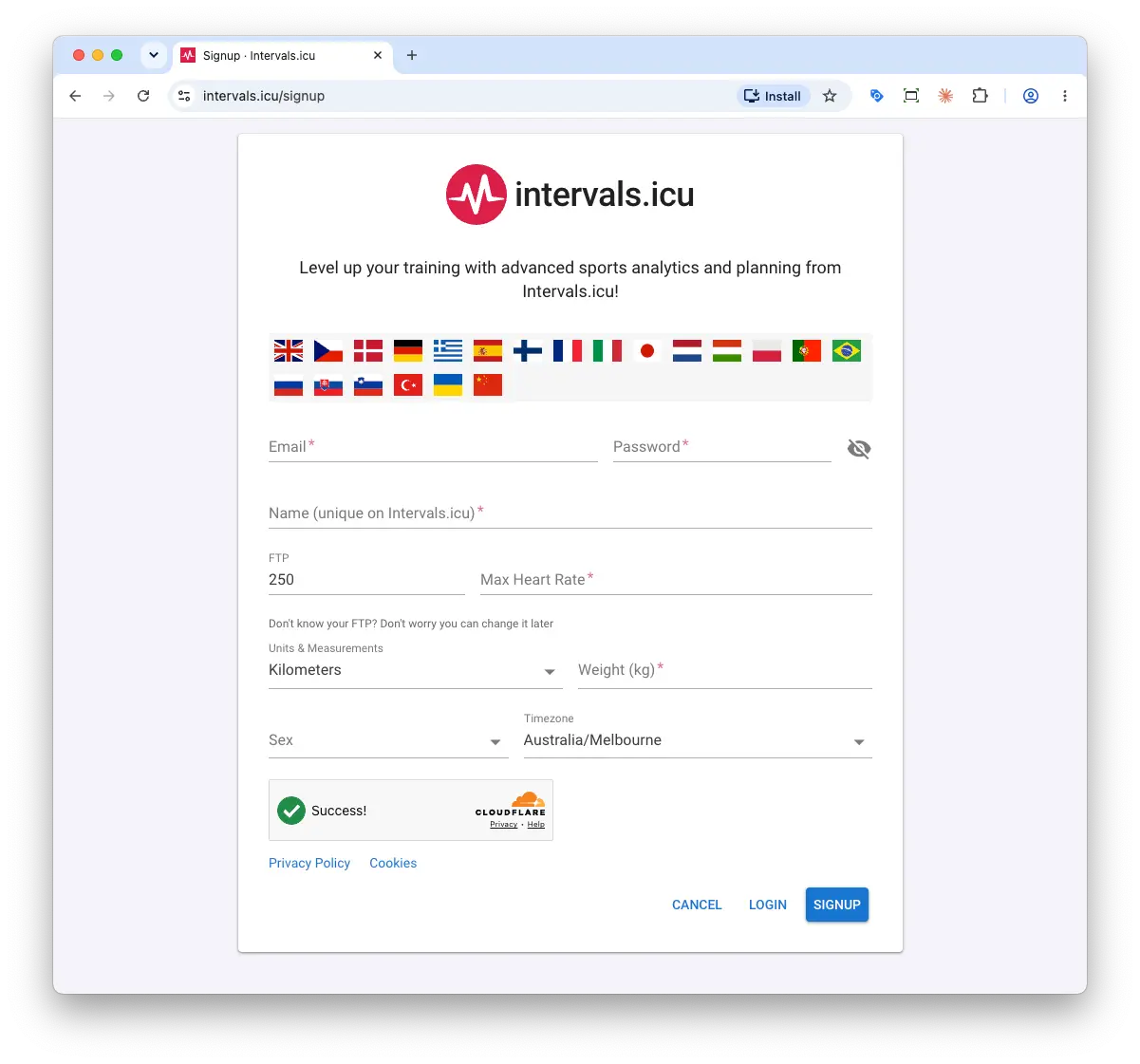
Go to intervals.icu and choose Get Started Free. No credit card is needed, and the free plan includes fitness and fatigue tracking, activity analysis, the training calendar, the workout builder and device integrations.
The sign up form asks for a few training details along with your email and password:
- Name: this must be unique on Intervals.icu.
- FTP: a cycling power number. It defaults to 250, and if you don't know yours or only run, you can leave it and change it later.
- Max heart rate: use your best estimate. You can refine it in Step 4.
- Weight, units, sex and timezone: check the timezone is right, since it decides which day your activities land on.
Nothing here is final. You will set your thresholds and zones properly for each sport in Step 4.
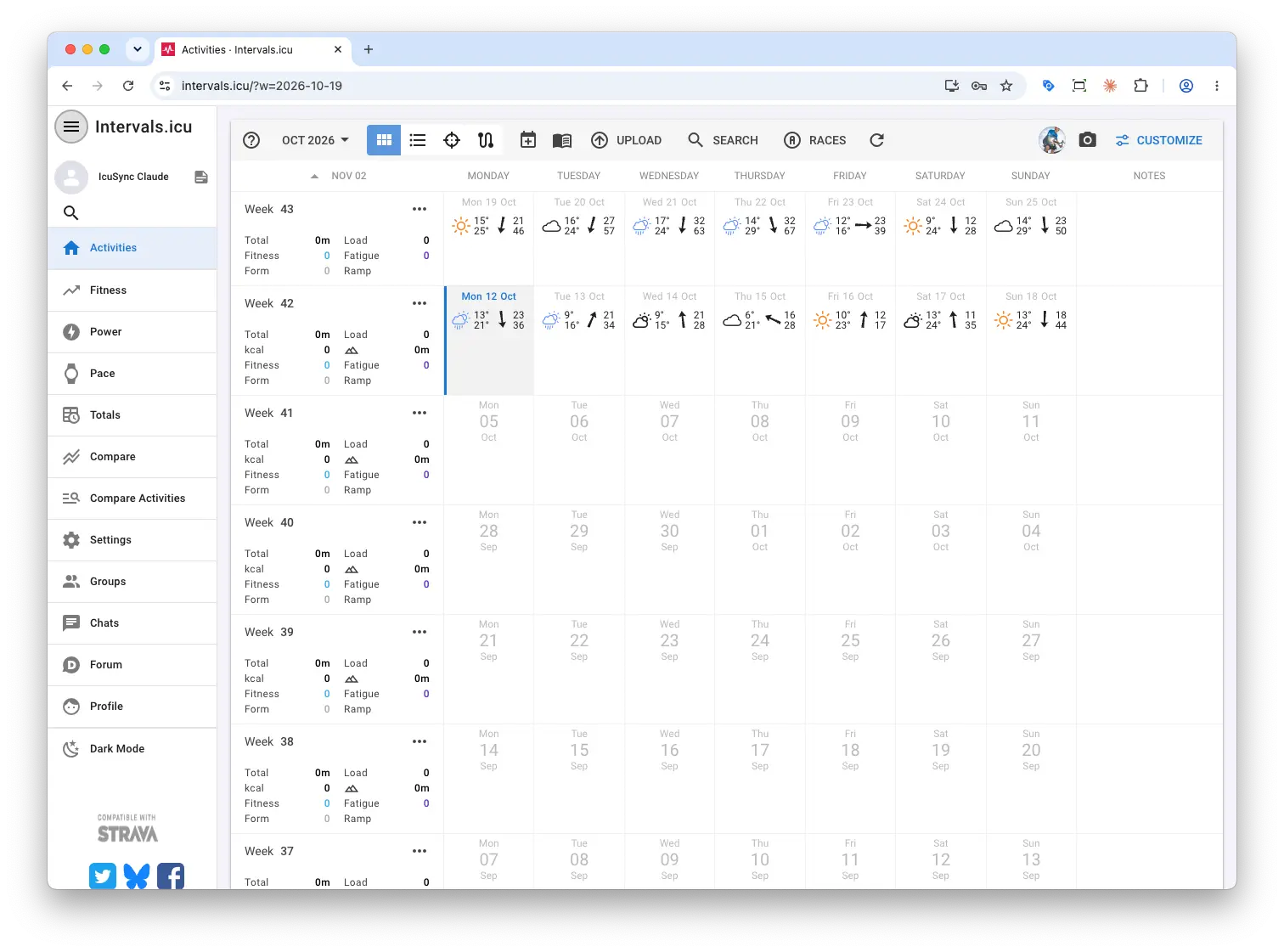
Once you are in, you land on an empty calendar. That is normal. Nothing shows until you connect a device in the next step.
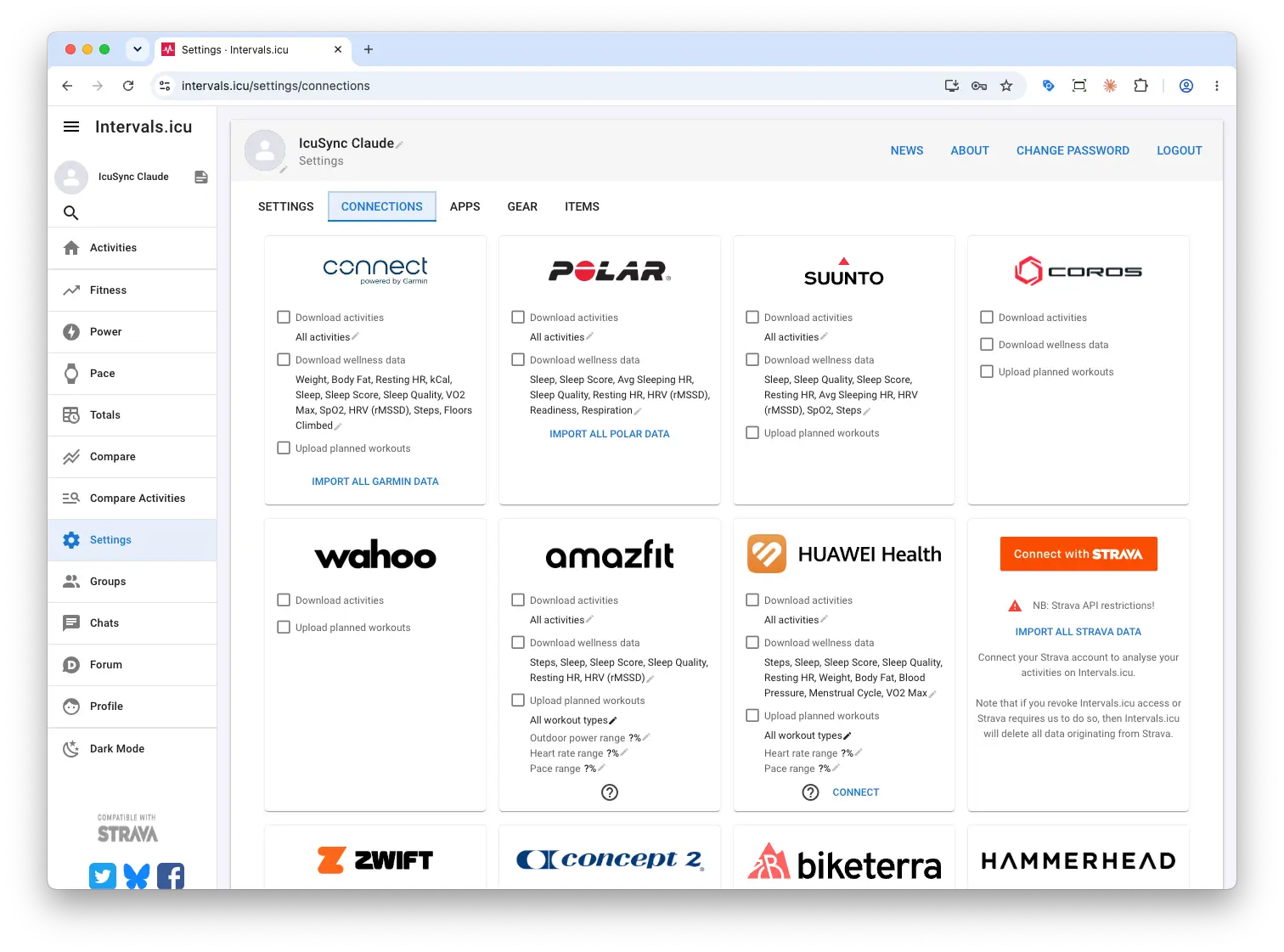
Step 2: Connect your watch directly, not through Strava
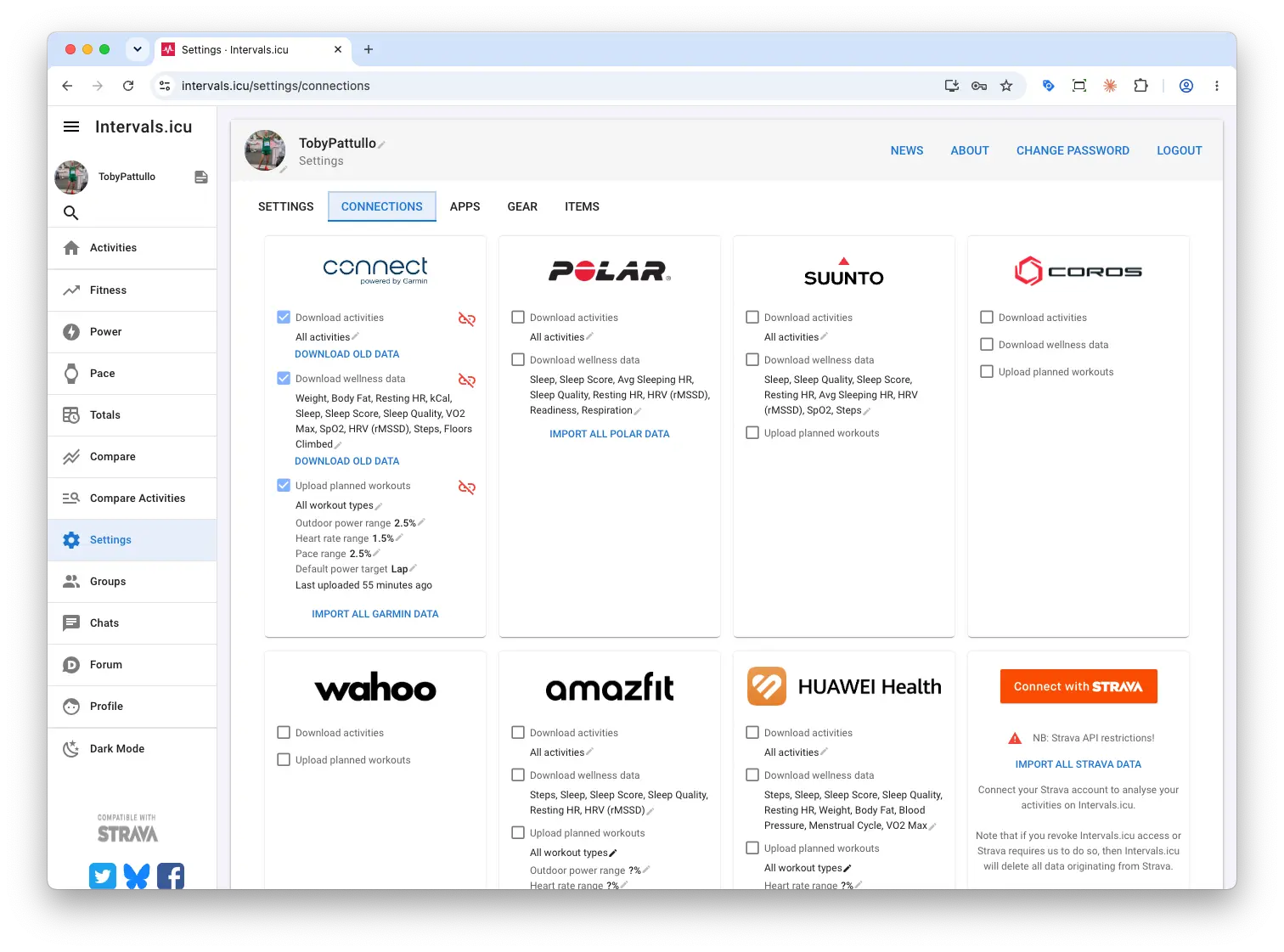
This is the most important step in the guide. Connect the service your device actually records to, such as Garmin Connect, Coros, Wahoo, Polar, Suunto or Zwift. Do this under Settings, then Connections.
Why not Strava?
It is tempting to connect Strava because everything already goes there. Since Strava changed its API terms in late 2024, activities that reach Intervals.icu through Strava are more limited:
- They are visible only to you, not to coaches or followers (Intervals.icu forum).
- They are not available through the Intervals.icu API, so other apps you connect to Intervals.icu cannot read them.
- Strava's terms also ban third parties from using Strava data in AI models.
If you want any of those things, a direct device connection is the only route that works.
Pick one source per device
If you connect both Garmin and Strava, the same run can arrive twice with slightly different numbers. The community FAQ recommends keeping only the original source and turning off the Strava download if your activities always come from another source. In short, leave the Strava download switched off unless Strava is your only source.
Using a Coros watch? See Coros Training Hub vs Intervals.icu compared for what Intervals.icu adds on top.
Step 3: Bring in your training history
Your fitness chart is only as good as the history behind it, because Fitness is built from weeks of past training. A few months of history makes the numbers meaningful from day one.
In Settings, Connections, use Download old data on your device connection to pull in past activities. Some platforms limit how far back they let other services fetch, so very old workouts may not come through automatically. The community Intervals.icu FAQ covers how to import a full history if you need it.
Step 4: Check your thresholds and zones
Intervals.icu keeps separate zones and settings for each sport, so running, riding and swimming are each set up on their own. Training load, Fitness and Fatigue are all calculated from these settings.
You entered an FTP and max heart rate when you signed up. Once your activities are in, open the Settings page and check that each sport you do has sensible values:
- Threshold: FTP for cycling, threshold pace for running and swimming.
- Heart rate: max HR, threshold HR and resting HR.
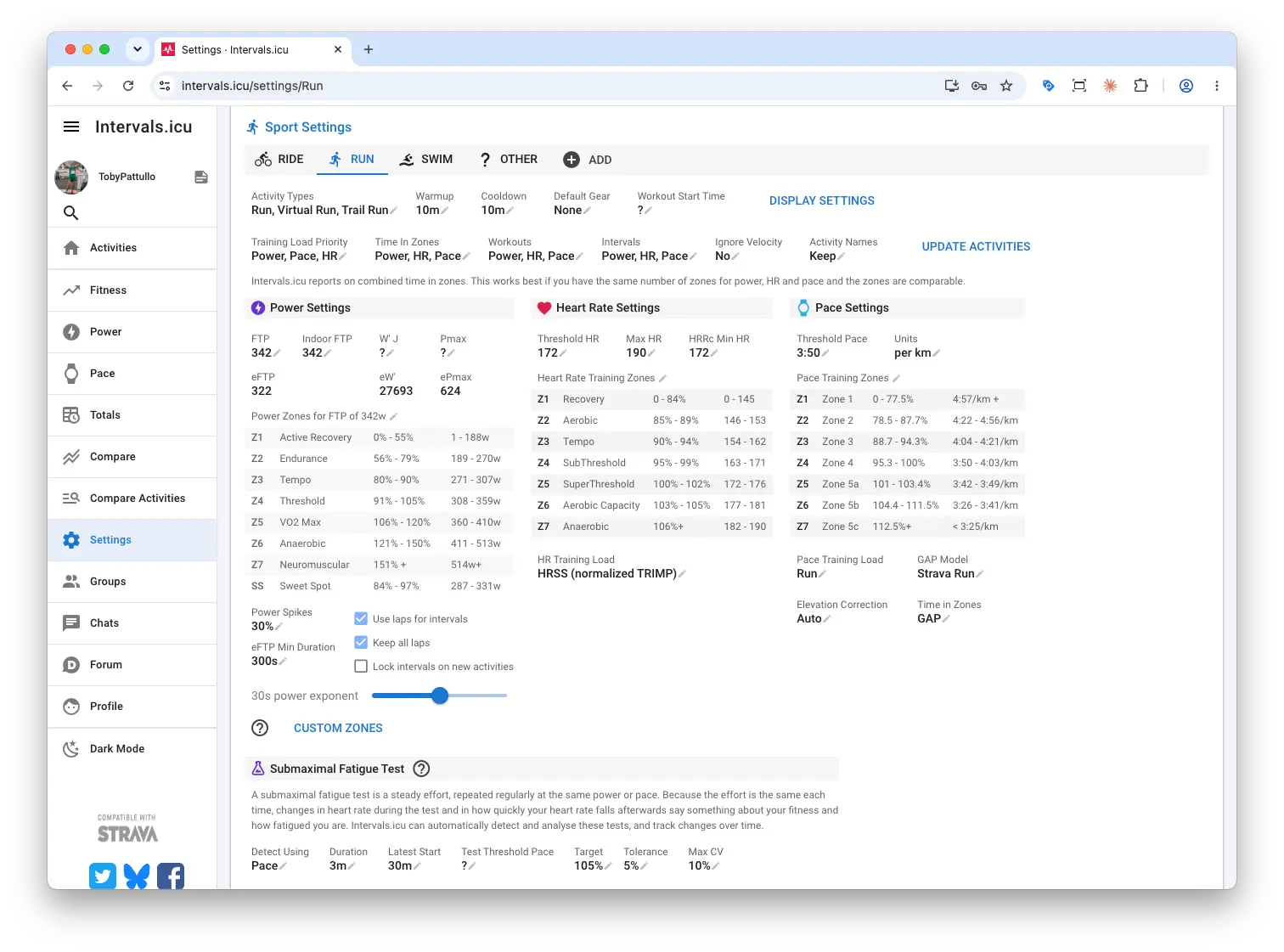
If your fitness or load numbers ever look wrong, these settings are the first place to look. The community FAQ notes that most of those questions come down to a threshold, HR value or load setting being wrong for that sport.
Intervals.icu can also estimate your FTP from hard efforts, shown as eFTP. Treat it as a suggestion. Your FTP only changes when you choose to accept the new value.
Step 5: Read the fitness chart
The Fitness page is where most people spend their time. If you have used TrainingPeaks, it is the same idea as the Performance Management Chart, with plain English names instead of CTL, ATL and TSB (Intervals.icu forum guide).
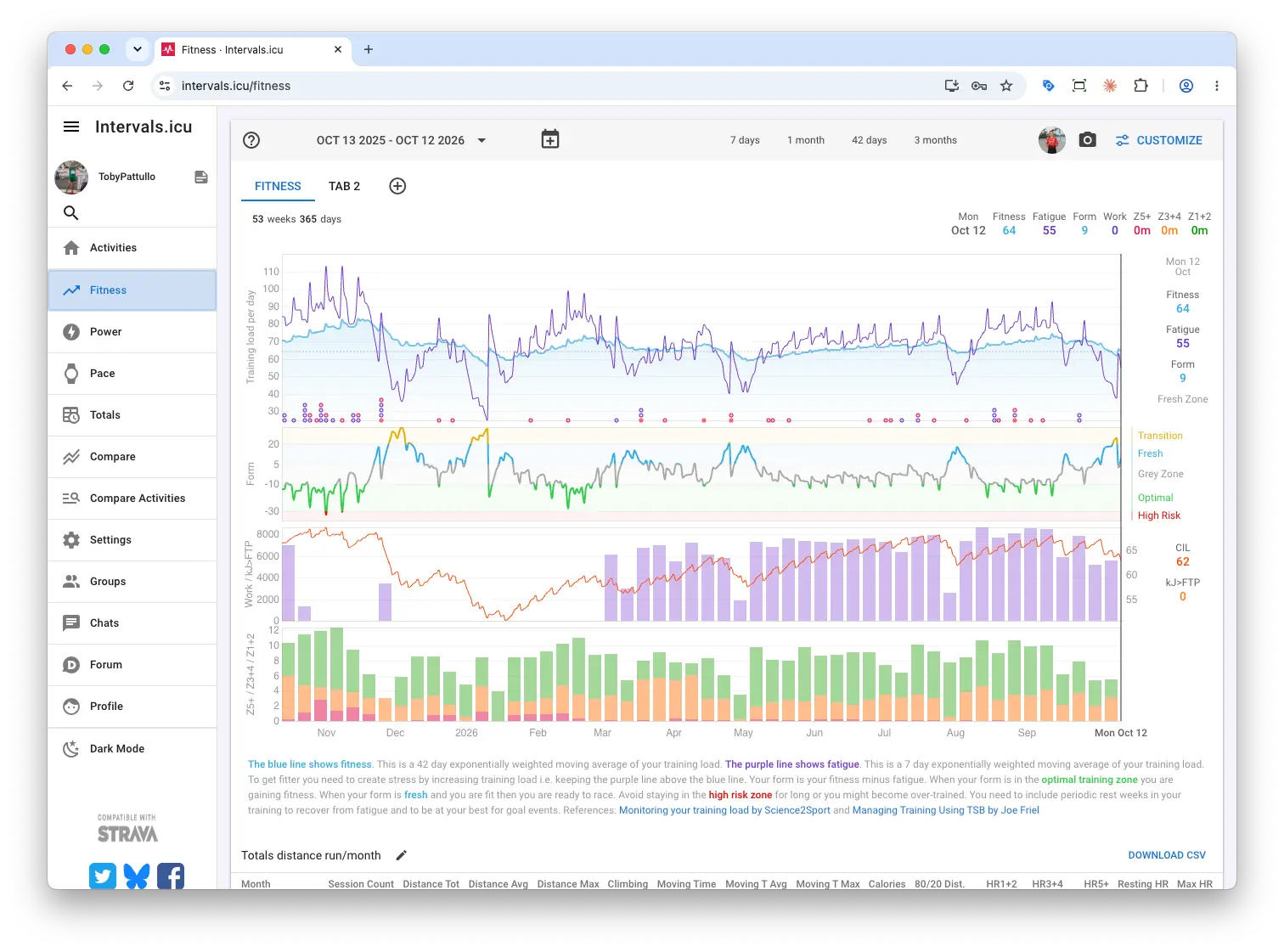
| Metric | What it tells you | Time window |
|---|---|---|
| Fitness | How much training you have done recently | Weighted over about 6 weeks (42 days) |
| Fatigue | How tired that training has likely made you | Weighted over the last 7 days |
| Form | Fitness minus Fatigue, a rough guide to how ready you are to perform | Changes daily |
Tips for your first weeks
- Give it about 6 weeks. Because Fitness uses a 42 day window, the chart only becomes meaningful after roughly 6 weeks of regular training, unless you imported history in Step 3.
- Leave the defaults alone. The community guide is clear that beginners should not change the Fitness and Fatigue time constants.
- Consider showing Form as an absolute value. Form can be shown as an absolute number or as a percentage of Fitness. With a low starting Fitness, the percentage view can push you into the red zone after even small sessions, so the guide suggests absolute values when starting out.
- Check it against how you feel. If Form says you are wrecked and you feel great, or the reverse, check your thresholds from Step 4 first.
For a deeper explanation, read what CTL, ATL and TSB mean and how to use them.
Step 6: Plan workouts and send them to your watch
The calendar is where you plan sessions, and with Garmin connected, planned workouts can appear on your watch or bike computer automatically. Intervals.icu also syncs workouts to other devices and platforms.
To turn on Garmin workout sync:
- Open Settings, then Connections, and find the Garmin section.
- When Garmin asks for permissions, allow Intervals.icu to send workouts.
- Tick Upload planned workouts in the Garmin connection.
- Add a structured workout to a future date on your calendar.
- Sync your watch with the Garmin Connect app, then look under Training, Workouts. On some Edge units it shows under Training Plan instead.
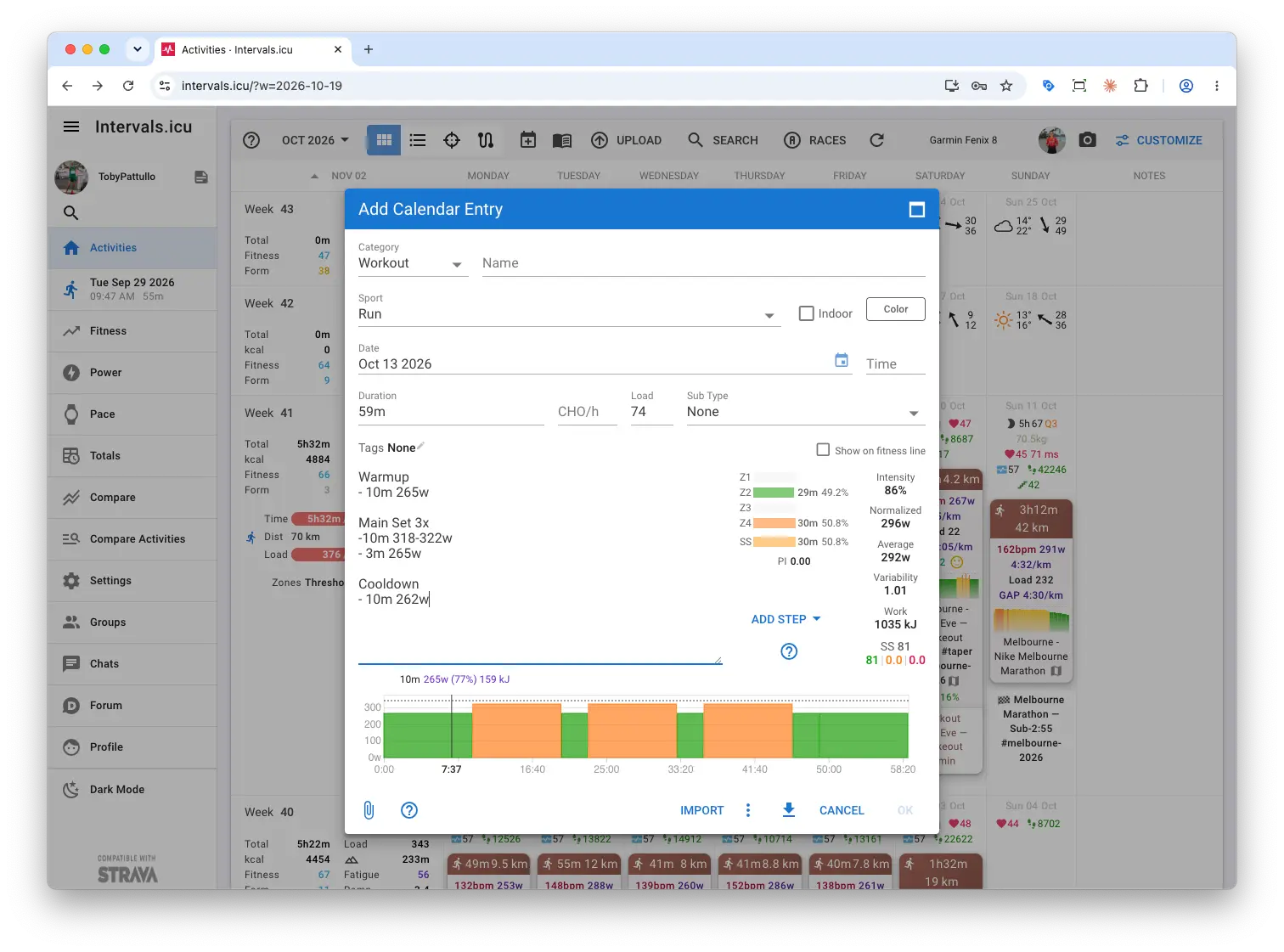
Workouts are written in a simple text format, for example 5m30s 60% 90rpm. If you are new to it, start with the official step by step guide to building structured workouts and the syntax quick guide. Set your zones first (Step 4), because workouts with pace, power or HR targets need them.
Ride indoors? Planned workouts can also reach Zwift through Intervals.icu's native sync. See Connect Claude AI to Zwift via Intervals.icu.
Common beginner questions
Most of these come from the community Intervals.icu FAQ, which is worth bookmarking.
Why do I see the same activity twice? Two connections, often Strava plus your watch, sent the same workout. Keep one source per device and turn off the extra import.
My activities stopped syncing after a break. Is it broken? Probably not. Free accounts that have not been used for a while can have their connection go dormant. Open Settings, Connections, and use Download old data for that connection.
Why is my fitness or training load way off? Usually one of FTP, threshold pace, resting HR, max HR or the load setting is wrong for that sport. Go back to Step 4.
Why is moving time different from Garmin or Strava? Each platform calculates moving time its own way. For indoor sessions, the Ignore velocity option on the activity often fixes a moving time that looks too low.
Why is my climbing different? Check whether elevation correction is turned on for that activity. If your device has a barometric altimeter, turning correction off and reprocessing usually gives the right number.
Why are my intervals not where my laps were? Intervals.icu detects intervals on its own. Use the Use Laps action on an activity, or turn it on per sport in Settings, if you prefer your device laps.
Running with extra sensors? See unlocking Garmin running dynamics and unlocking Stryd data.
Getting help and supporting Intervals.icu
The Intervals.icu forum is the main place for help. Start with the Guide category, which has getting started guides for the Activities, Fitness and Settings pages. Most charts in the app also link to background reading on what they show.
Intervals.icu is free, and supporters fund its development. A supporter subscription adds features such as full Strava history import, completely custom zones, the annual training plan builder and early access to beta features. If the free plan is useful to you, supporting it is a good way to keep it independent.
Once your data is flowing in, you can also ask questions about it in plain English. IcuSync connects your Intervals.icu account to Claude and other AI assistants, and it works with the direct device connection you set up in Step 2.